How to Set Up TiviMate on Firestick: The Ultimate IPTV Installation Guide
The Amazon Firestick is indisputably the most popular streaming device in the United States, offering cord-cutters an affordable and flexible way to access entertainment. However, to unlock the true potential of your streaming hardware, pairing it with a premium IPTV player is essential. Among all available players on the market today, TiviMate IPTV Player stands out as the absolute gold standard. With its highly polished, cable-like user interface, lightning-fast zapping speed, and advanced Electronic Program Guide (EPG) customization, TiviMate provides a viewing experience that rivals traditional cable television.
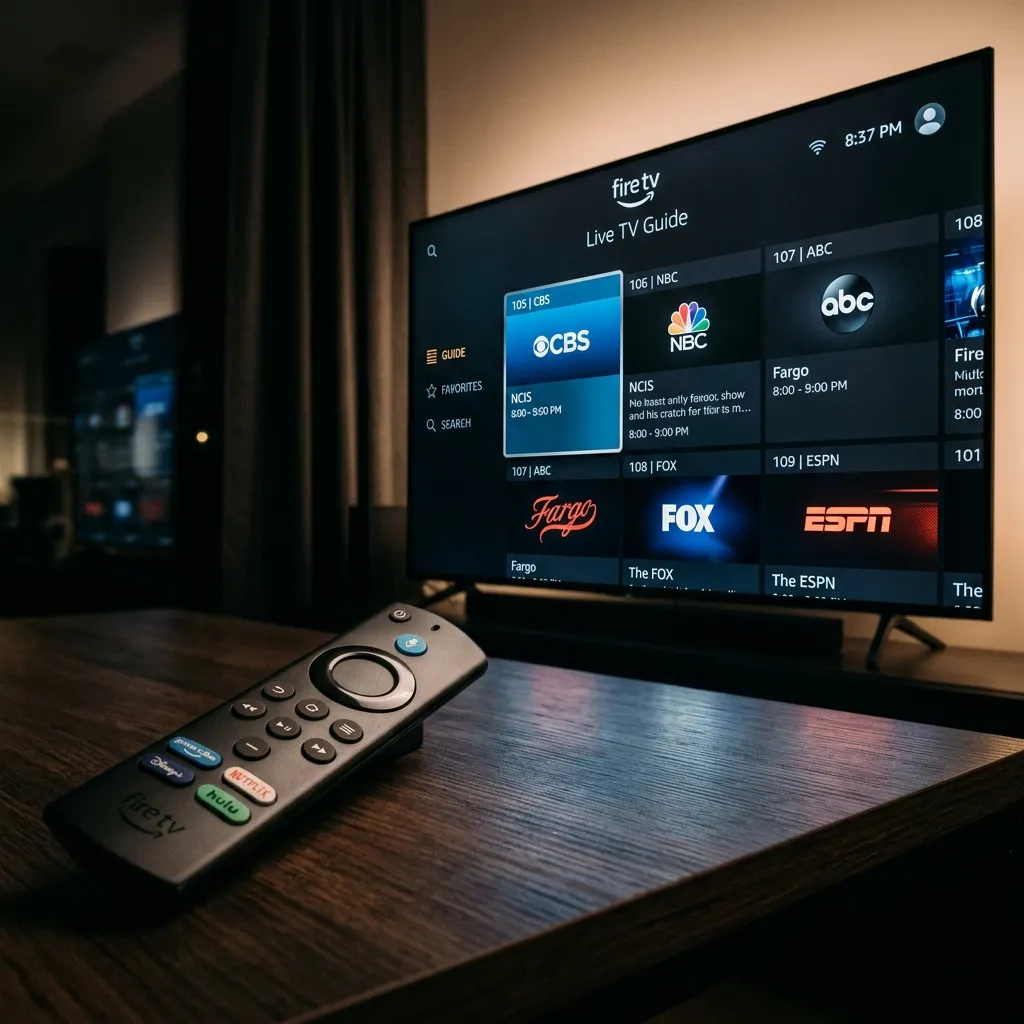
Figure 1: Streaming live TV buffer-free on Firestick using TiviMate Player
But a great player is only as good as the stream source powering it. By combining TiviMate's cutting-edge interface with Ghost IPTV Homepage's ultra-reliable, high-speed CDN network, you get access to over 35,000 live channels, premium sports packages, and massive VOD libraries in native 4K and HD quality with zero buffering. In this step-by-step tutorial, we will walk you through exactly how to download, install, and configure TiviMate on your Amazon Firestick, and connect it to your Ghost IPTV subscription.
Step 1: Prepare Your Firestick for Third-Party Installation
Because TiviMate is an IPTV player, it is not hosted directly on the official Amazon Appstore. To install it, you must sideload the application using the Downloader app. First, we need to adjust your Firestick's security settings. Go to the home screen of your Firestick, navigate to the Gear icon on the far right to open Settings, and select 'My Fire TV'. Within this menu, locate and click on 'Developer Options'.
If you do not see Developer Options listed, go to 'About' and click on your device name (e.g., Fire TV Stick 4K) exactly 7 times until a notification pops up saying 'You are now a developer'. Go back one step, open Developer Options, select 'Install Unknown Apps', and make sure it is turned ON for the Downloader application. This will grant your Firestick permission to install TiviMate.
Step 2: Install the Downloader App
If you do not have Downloader installed, go back to the Firestick Home Screen, click the Find/Search icon, type in 'Downloader', and select the app with the orange background. Click 'Download' or 'Get' to install it. Once installed, launch the Downloader app. It will ask for permissions to access files on your device; click 'Allow' to ensure the app functions correctly.
Step 3: Download and Install TiviMate IPTV Player
Inside the Downloader app, select the URL box on the home screen. Type in the official shortcode for TiviMate or the direct APK link. For the latest stable version of TiviMate, type the code: 250931 (or enter the URL `https://tivimate.com` to fetch the APK) and click Go. The app will automatically redirect and begin downloading the TiviMate APK file.
Figure 2: Loading streams on Firestick, Android, and TV screens
Once the download completes, a prompt will automatically appear asking if you want to install the application. Click 'Install' in the bottom right corner. After the installation is complete, click 'Done'. To save storage space on your Firestick, click 'Delete' on the installation file prompt to remove the temporary APK file from your system. This keeps your device running fast, which is critical for Core Web Vitals Page Speed and preventing system delays.
Step 4: Configure Ghost IPTV in TiviMate
Now that TiviMate is installed, navigate to your Apps library and open the application. When you open TiviMate for the first time, you will be greeted with a welcome screen. Click 'Add Playlist' to begin connecting your Ghost IPTV service. TiviMate offers multiple connection methods, but we highly recommend using the Xtream Codes API. This connection method is superior because it automatically parses all channel categories, movies, series, and EPG data without requiring manual setup.
To connect via Xtream Codes, select that option and enter the server details provided in your Ghost IPTV welcome credentials. Enter the Server URL: `http://ghostiptv.store:8080`, followed by your unique Username and Password. Click 'Next'. TiviMate will connect to our US-based edge servers and begin caching the channel lists. This process takes about 20-30 seconds. Once completed, enter a playlist name (e.g., 'Ghost IPTV') and click 'Done'.
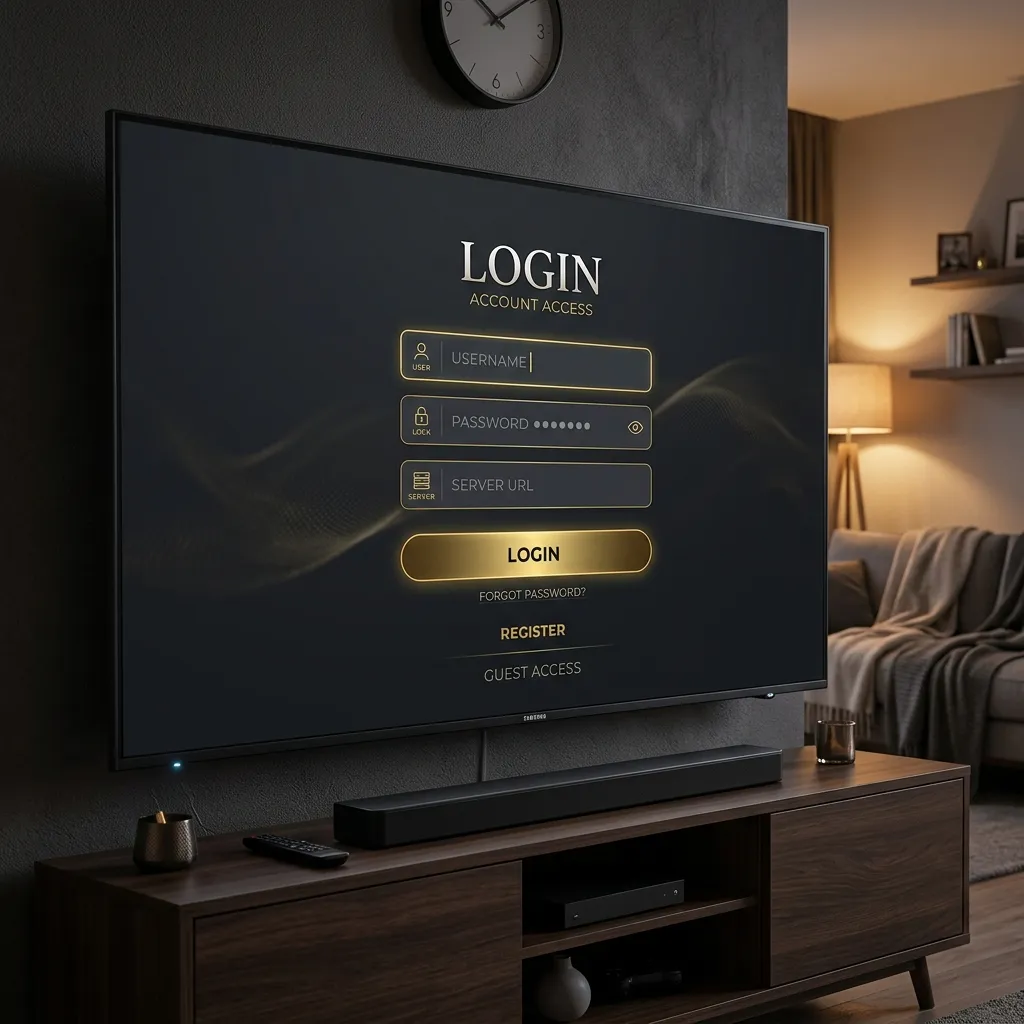
Figure 3: Configuring Xtream Codes API connection with server details
Step 5: Tweak Advanced Settings for Buffer-Free Streaming
To ensure maximum stability on 4K sports streams (like NFL, NBA, and UFC PPV events), we recommend tweaking a few buffer settings inside TiviMate. Navigate to Settings -> Playback. Under 'Buffer Size', change the setting from 'Normal' to 'Large' or 'Very Large'. This allocates more RAM of your Firestick to buffer incoming video packets, effectively eliminating any transient network fluctuations. Additionally, go to Settings -> EPG and verify that 'Update on app start' is enabled. This guarantees your program guide always shows the correct schedule for all US, UK, and Canadian networks.
By following this guide, you now have the most powerful IPTV setup on your Firestick. To browse our premium subscription options and lock in your native 4K stream access, visit our Premium Subscription Plans page and choose the plan that fits your budget. If you want to check channel availability first, explore our comprehensive Global Channels List or contact our team via WhatsApp Support for a demo.
Frequently Asked Questions
Is TiviMate free to use on Firestick?
TiviMate offers a free version that includes basic player functions. However, to unlock premium features like EPG guide customization, favorites grouping, search functionality, and multi-screen layout, we highly recommend upgrading to TiviMate Premium via the TiviMate Companion app for a nominal annual or lifetime fee.
Does Ghost IPTV support Xtream Codes API on TiviMate?
Yes. Ghost IPTV fully supports Xtream Codes API and M3U playlists. We recommend Xtream Codes for TiviMate because it automatically syncs all channels, movies, series, and live program guides (EPG) in one step.
Why is my TiviMate streaming buffering?
Buffering on TiviMate is usually caused by insufficient bandwidth, an outdated app version, or ISP throttling. To resolve this, connect your Firestick via Ethernet, set your buffer size to 'Large' in TiviMate settings, or use a high-quality VPN to bypass ISP speed limits during major sports broadcasts.
Can I record live TV broadcasts on TiviMate?
Yes, TiviMate Premium includes a built-in recording feature. You can record live shows to your Firestick internal storage or set up a Network Attached Storage (NAS) or LAN folder for storing longer sports events.
How do I update the EPG guide on TiviMate?
EPG guide data updates automatically. You can also trigger a manual sync by going to TiviMate Settings -> EPG -> Update EPG. Make sure the server URL in your playlist is entered correctly to fetch the latest TV schedules.
Related Guides
Experience Zero-Buffering 4K IPTV Today
Join over 250,000 satisfied cord-cutters in the USA. Setup takes less than 5 minutes on your Firestick, Smart TV, or Apple TV.
5-Min Delivery
Instant Credentials
24/7 Live Support
WhatsApp Concierge
35K+ Channels
Native 4K & VOD
99.97% Uptime
No Buffering CDN
Compatible with: Amazon Firestick, TiviMate, Android TV, Smart TV (Samsung/LG), Apple TV 4K, MAG, and smartphones.