IPTV Setup Guide for Roku: The Complete 2026 Workaround Tutorial
Roku is one of the most popular streaming operating systems in the United States, powering millions of Roku Streaming Sticks and Roku Smart TVs (like TCL and Hisense). Its simple, ad-supported interface makes it a favorite for casual viewers. However, when it comes to cutting the cord with IPTV, Roku presents a massive hurdle. In late 2019, Roku actively banned and removed all M3U playlist players and IPTV applications from their Channel Store. Unlike Amazon Firesticks or Android devices, Roku is a 'closed' ecosystem—meaning you cannot simply download an APK file from the internet and sideload it.
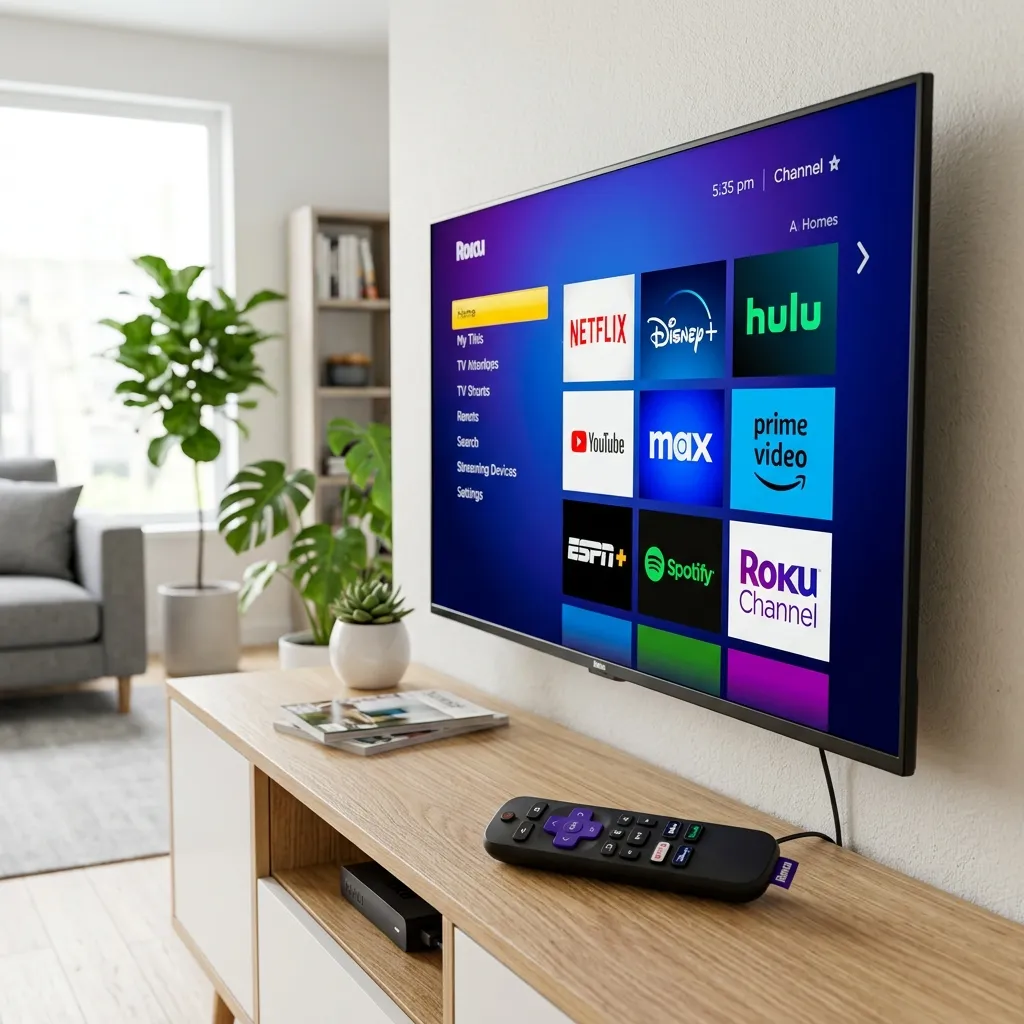
Figure 1: While Roku's OS is closed, workarounds exist to stream IPTV.
Despite these strict restrictions, you do not need to throw away your Roku device to enjoy premium live television. In this comprehensive IPTV setup guide for Roku, we will walk you through the three most effective workarounds to stream Ghost IPTV's global channels directly to your Roku television.
Method 1: Screen Mirroring (The Easiest Solution)
The fastest and most reliable way to watch IPTV on a Roku device is by using Screen Mirroring (also known as casting). Since you cannot install a dedicated IPTV player on the Roku itself, you install the player on your smartphone or tablet, and wirelessly beam the video to your Roku TV.
Step 1: Enable Screen Mirroring on Roku
First, you must ensure your Roku is ready to accept a casted signal. Go to the Roku Home Screen, navigate to Settings > System > Screen mirroring. Under 'Screen mirroring mode', select 'Prompt' or 'Always allow'. Also, verify that both your smartphone and your Roku device are connected to the exact same Wi-Fi network (preferably the 5GHz band to prevent buffering).
Step 2: Cast from an Android Device
If you use an Android smartphone, install an IPTV app like IPTV Smarters Pro or GSE Smart IPTV from the Google Play Store. Configure the app with your Ghost IPTV credentials (see our Smarters Pro Setup Guide if you need help). Once a channel is playing on your phone, swipe down to access your Android Quick Settings and tap 'Smart View', 'Cast', or 'Screen Mirroring'. Select your Roku device from the list. The video will now play on your television.
Figure 2: Casting from an Android or iOS device directly to a Roku display.
Step 3: Cast from an Apple Device (iOS)
If you are using an iPhone or iPad, modern Roku devices support Apple AirPlay. First, ensure AirPlay is enabled on your Roku by going to Settings > Apple AirPlay and HomeKit. Next, download an app like GSE Smart IPTV or LilyPlayer from the App Store. Start playing your desired channel, open the iOS Control Center, tap the 'Screen Mirroring' icon (two overlapping rectangles), and choose your Roku. For a list of the best iOS apps, check our Apple TV IPTV Guide, as many of these apps share iOS counterparts.
Method 2: Using the Web Video Caster App
While screen mirroring copies your entire phone screen (meaning you cannot use your phone while watching TV), using a casting app like Web Video Caster is a much more elegant solution. It sends the video link directly to the Roku, allowing your phone screen to turn off.
1. Download the 'Web Video Caster' app on your smartphone (available for Android and iOS). 2. On your Roku, search the Channel Store for the 'Web Video Caster Receiver' app and install it. 3. Open the app on your phone, click the three-line menu icon, and select 'IPTV'. 4. Paste the M3U Playlist URL provided by Ghost IPTV. 5. Select a live TV channel or a movie from the VOD list. 6. Tap the 'Cast' icon at the top of the screen, select your Roku, and the video will begin playing natively on your TV.
Method 3: Sideloading IPTV Smarters via Developer Mode (Advanced)
For advanced users who want a native app experience, it is technically possible to sideload a custom IPTV app onto a Roku by enabling Developer Mode. However, this method requires a computer, network knowledge, and a specific Roku developer package (.zip file) of the IPTV Smarters application.
1. On your Roku remote, press: Home (3x), Up (2x), Right, Left, Right, Left, Right. This sequence opens Developer Mode. 2. Note the IP Address displayed on the screen and select 'Enable installer and restart'. 3. After the Roku restarts, open a web browser on your computer and type in the Roku's IP Address. 4. Log in using the username 'rokudev' and the password you created in step 2. 5. Click 'Upload', select the IPTV Smarters .zip file from your computer, and click 'Install'.
The app will now appear on your Roku home screen. *Note: Roku frequently updates its firmware to break sideloaded apps. If this app stops working, you will need to revert to Screen Mirroring or Casting.*
A Better Alternative: Upgrade Your Hardware
While this IPTV setup guide for Roku provides functional workarounds, the harsh truth is that Roku is actively hostile toward IPTV streaming. Constant workarounds can be frustrating, especially when dealing with buffering caused by wireless casting. If you want a seamless, fast, and native 4K experience, we highly recommend spending $30 on an Amazon Fire TV Stick 4K.
You can plug a Firestick directly into the HDMI port of your Roku TV, effectively bypassing the Roku operating system entirely. From there, you can install TiviMate and enjoy flawless playback. Read our Firestick Setup Guide to see how simple it is.
Conclusion
Whether you choose to cast from your smartphone, use the Web Video Caster app, or upgrade to a Firestick, Ghost IPTV is ready to deliver 35,000+ live channels directly to your living room. Visit our Pricing Page to grab your premium M3U credentials today, and if you need any technical assistance connecting your devices, our WhatsApp Support team is standing by 24/7 to assist you.
Frequently Asked Questions
Why did Roku remove IPTV Smarters from their store?
Roku removed almost all M3U players, including IPTV Smarters, in late 2019 due to copyright infringement complaints from major cable networks. Because Roku operates a closed platform, they strictly police which applications are allowed on their devices.
Can I install TiviMate on my Roku TV?
No. TiviMate is an Android application (APK) and is completely incompatible with Roku's proprietary operating system. To use TiviMate on a Roku TV, you must connect an external Android box or Firestick via HDMI.
Is casting IPTV to Roku laggy?
Casting can introduce latency and buffering if your home Wi-Fi network is weak. To minimize lag, ensure both your casting device (phone/tablet) and the Roku are connected to the 5GHz Wi-Fi band, and avoid downloading large files while streaming.
What is the Web Video Caster Receiver?
It is an official app available in the Roku Channel Store that acts as a bridge. It allows the Web Video Caster app on your smartphone to send direct video URLs (like IPTV streams) to your Roku for native playback, rather than mirroring your entire phone screen.
Do I need a VPN when casting IPTV to Roku?
If your ISP is throttling your internet speeds, using a VPN on your smartphone while casting can help bypass the speed limits. However, the VPN must be active on the device that is fetching the stream (your phone), not the Roku.
Related Guides
Experience Zero-Buffering 4K IPTV Today
Join over 250,000 satisfied cord-cutters in the USA. Setup takes less than 5 minutes on your Firestick, Smart TV, or Apple TV.
5-Min Delivery
Instant Credentials
24/7 Live Support
WhatsApp Concierge
35K+ Channels
Native 4K & VOD
99.97% Uptime
No Buffering CDN
Compatible with: Amazon Firestick, TiviMate, Android TV, Smart TV (Samsung/LG), Apple TV 4K, MAG, and smartphones.